DNS and the dig Command: Understanding Internet's Address Resolution
Introduction: DNS as the Internet's Phonebook

When we type microsoft.com into our browser, something magical happens instantly. Our computer transforms a human-readable domain name into an IP address, connects to the right server, and retrieves the content we need. But how does this magic work?
We use the Domain Name System (DNS) every single day, often without thinking about it. Just like we don't memorize phone numbers anymore but instead look up names in our contacts, our computers don't need to remember that Microsoft web server lives at 13.107.213.68. Instead, DNS resolves the name to the address automatically.
The problem DNS solves: IP addresses are hard to remember. We can't ask users to visit 13.107.213.68 instead of microsoft.com. DNS bridges this gap by maintaining a distributed, hierarchical database that maps domain names to IP addresses.
Part 1: What is DNS and Why Name Resolution Exists
The Need for DNS
When we connect to a website, our browser needs the IP address of the server hosting that site. Without DNS, we'd need to:
Manually look up the IP address somewhere
Type it into our browser
Remember hundreds of IP addresses for the sites we visit regularly
This is impractical. DNS automates this process at a global scale.
How DNS Works at a High Level
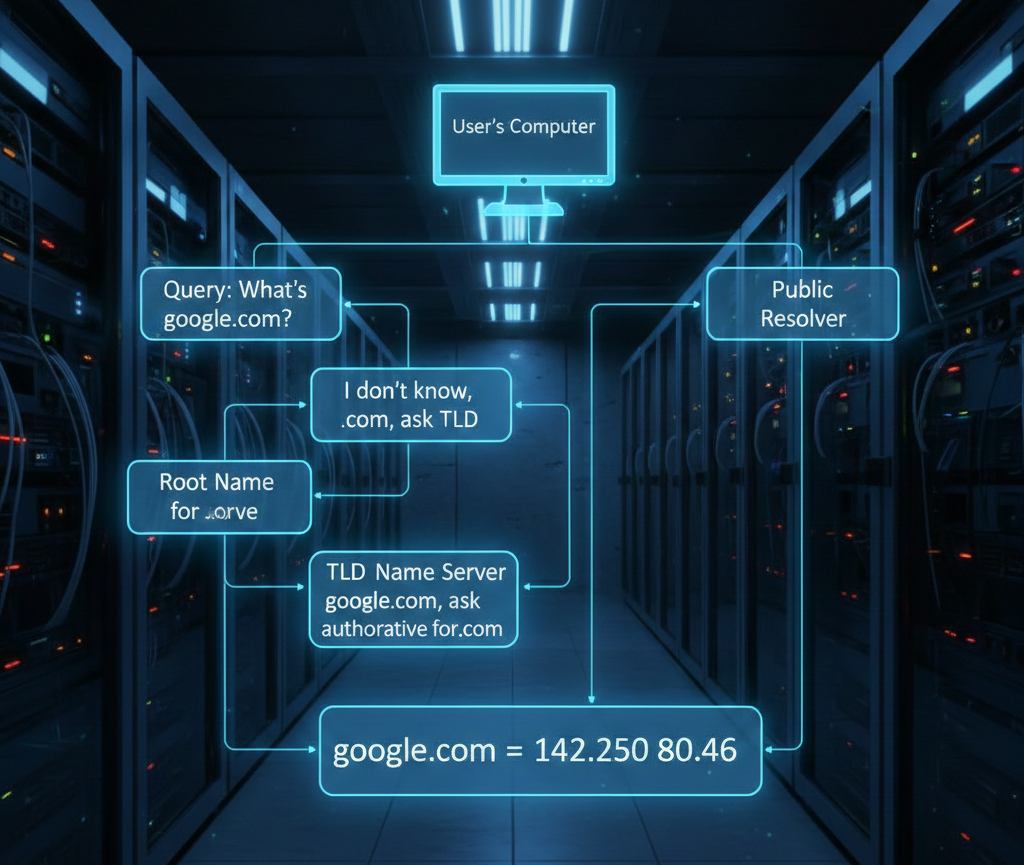
DNS is a hierarchical, distributed system. When we request microsoft.com, our computer doesn't ask one central database. Instead, it queries a series of name servers in this order:
Recursive Resolver (usually our ISP or a public resolver like 8.8.8.8)
Root Name Server (knows where to find TLD servers)
TLD Name Server (knows where to find authoritative servers for the domain)
Authoritative Name Server (has the actual IP address)
Each layer in this hierarchy knows just enough to point us to the next layer. This distributed approach makes DNS resilient, fast, and scalable.
The DNS Hierarchy
Part 2: The dig Command - Your DNS Detective Tool
What is dig?
dig stands for Domain Information Groper. It's a command-line utility that allows us to query DNS servers directly and see exactly what's happening during name resolution. Instead of relying on our browser or operating system to silently resolve names, dig shows us the complete conversation with DNS servers.
Why We Use dig
As engineers we building distributed systems, we need visibility into DNS resolution. dig is our diagnostic tool for:
Troubleshooting DNS issues - Why isn't my domain resolving?
Understanding the hierarchy - How are name servers configured?
Inspecting record types - What's the MX record for this domain?
Testing DNS propagation - Has my new DNS record gone live?
Learning how DNS works - This is why we're here!
Installing dig
On Linux/Mac: Usually pre-installed. If not we can install by :
# Ubuntu/Debian
sudo apt-get install dnsutils

# Mac
brew install bind-tools
On Windows: Have to use Windows Subsystem for Linux (WSL), or have to install BIND utilities.
Part 3: Understanding the DNS Resolution Layers
Now let's walk through each layer of DNS resolution using actual dig commands. We'll build understanding step by step.
Layer 1: Root Name Servers - The Starting Point
Let's ask a root name server about the domain . (which represents the root of the DNS hierarchy):
dig . NS
What this command does:
We query for NS records (Name Server records) for the root domain
NS records tell us which servers are authoritative for a domain
Expected output :
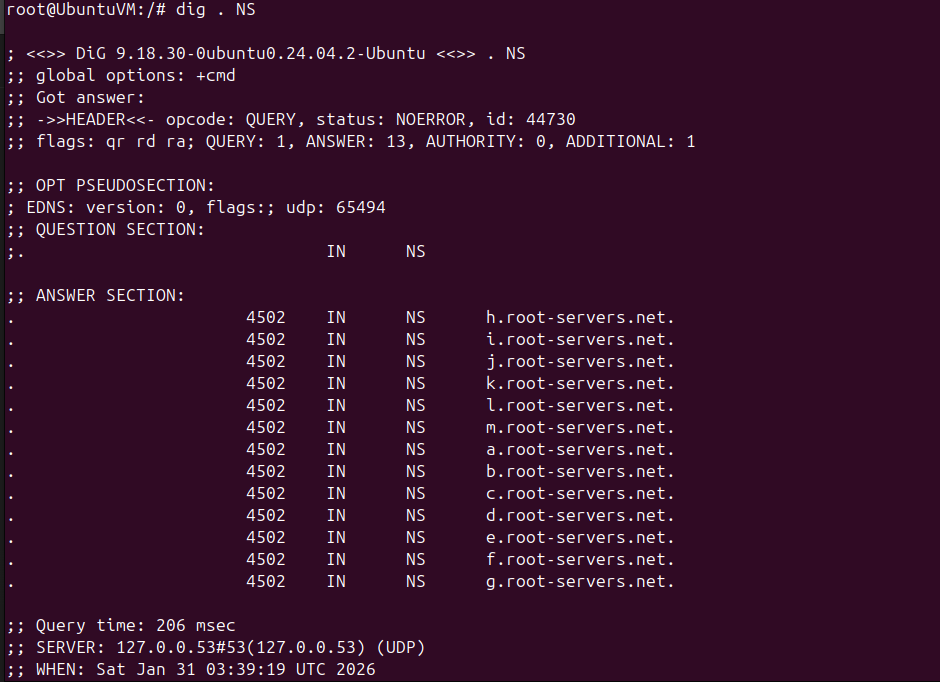
What this tells us:
There are 13 root name servers (a through m)
They are named
a.root-servers.net,b.root-servers.net, etc.Each has a TTL (Time To Live) of 518400 seconds (6 days)
These servers form the top layer of the DNS hierarchy
Why root servers matter: Root servers are the starting point for all DNS queries. When we request microsoft.com, a recursive resolver first asks a root server: "I don't know where microsoft.com is. Do we have a TLD server for .com domains?"
The root server responds: "I don't handle microsoft.com, but here are the TLD servers for .com—ask them."
Layer 2: TLD Name Servers - The Directory
Now let's query the TLD (Top-Level Domain) servers for .com:
dig com NS
Expected output:
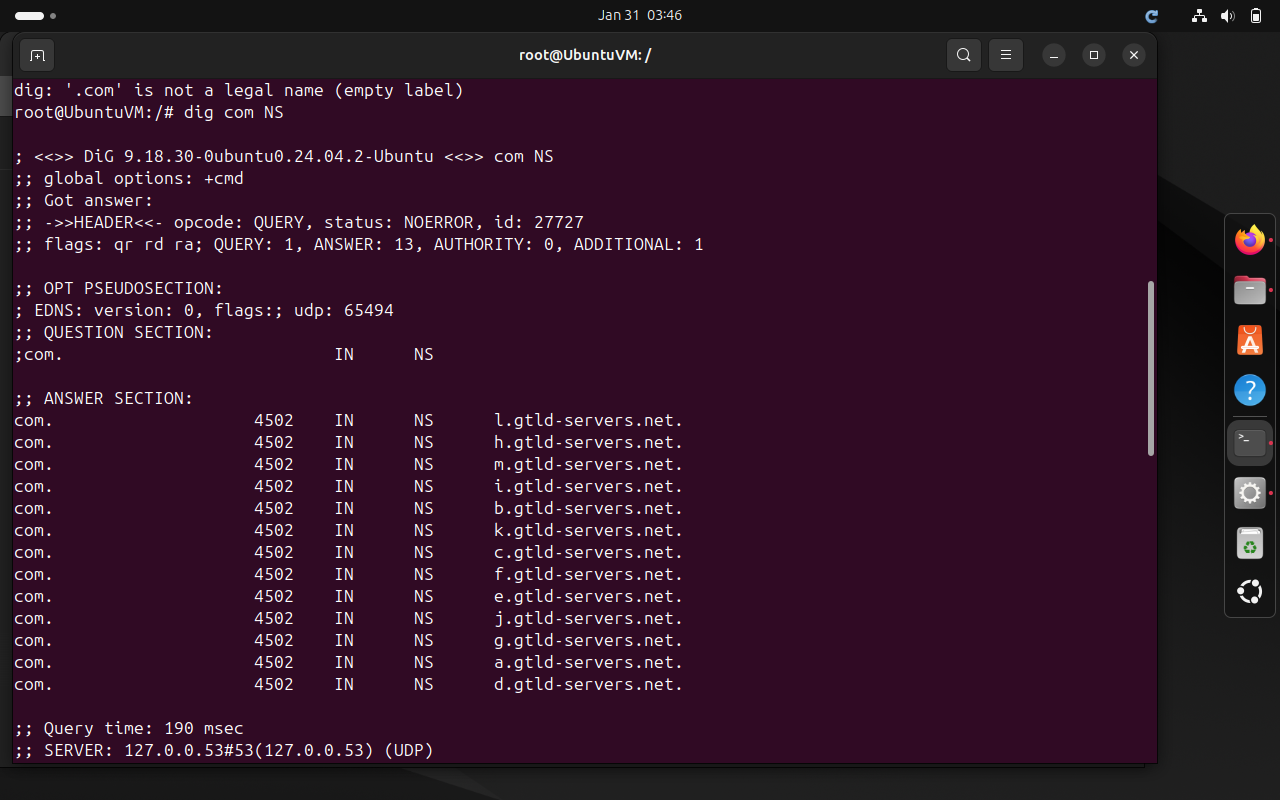
What this tells us:
There are multiple TLD servers for
.comThey're called gTLD (Generic Top-Level Domain) servers
The TTL is 172800 seconds (2 days)
Why TLD servers matter: TLD servers know which companies own which domains. When a recursive resolver asks "Where is microsoft.com?", the TLD server for .com responds: "Microsoft owns microsoft.com. Ask their authoritative name server."
This is like asking "Where does someone named Kris live?" at a local directory. The directory doesn't know every Kris's address, but it knows which neighborhoods have Kris, and it points we to the right neighborhood.
Layer 3: Authoritative Name Servers - The Truth
Finally, let's query the authoritative name servers for microsoft.com:
dig microsoft.com NS
Expected output:
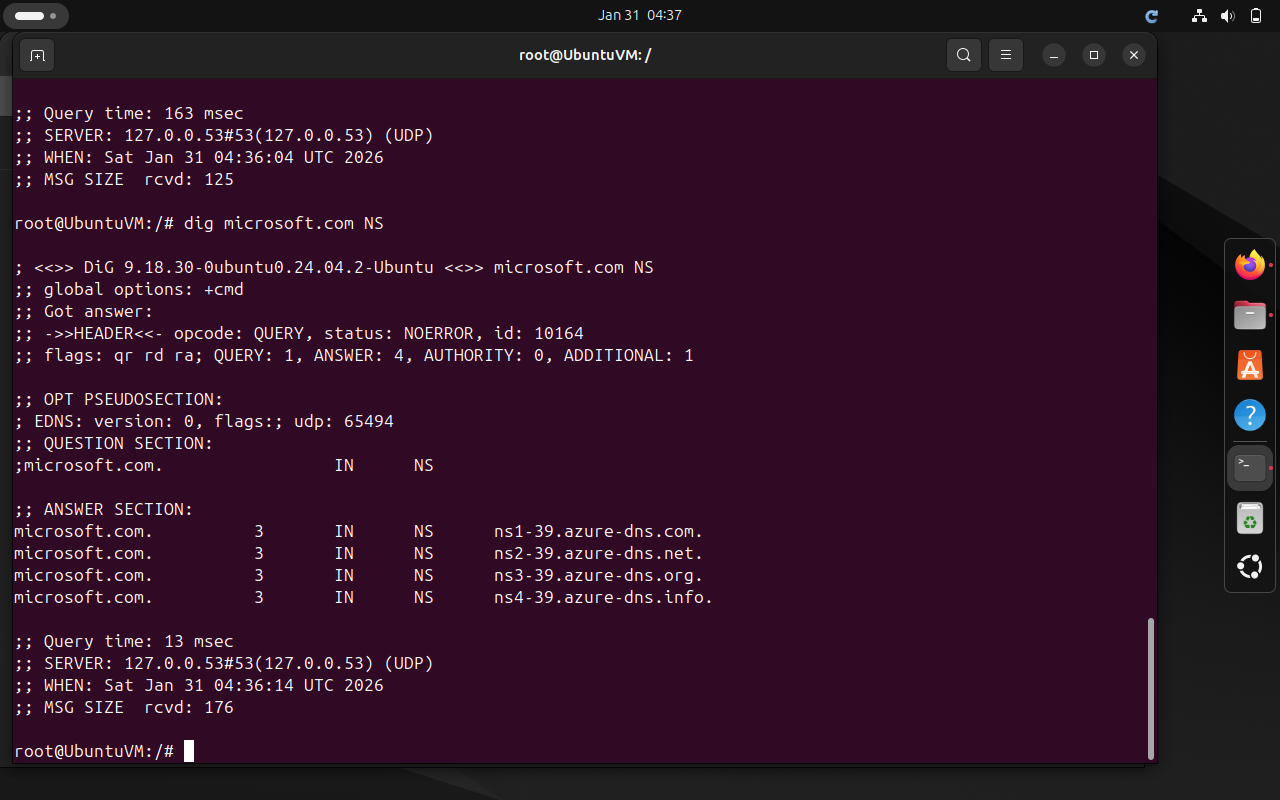
What this tells us:
Microsoft operates four authoritative name servers for their domain
These servers are
ns1-39.azure-dns.comthroughns439.azure-dns.infoThey're the source of truth for microsoft.com's DNS records
Why authoritative servers matter: These servers actually have the IP addresses and other records for microsoft.com . When we ask an authoritative server "What's the IP address of microsoft.com?", it gives us the definitive answer. This is the final layer in our DNS hierarchy.
Understanding NS Records
NS records are crucial. They answer the question: "Who are the name servers for this domain?"
Think of NS records like this:
Root domain NS records → "Here are the TLD servers"
TLD domain NS records → "Here are the authoritative servers for that domain"
Domain NS records → "Here are our authoritative servers"
Each level delegates responsibility to the next level. This delegation is what makes DNS scalable. The root doesn't need to know about every domain in the world—only about top-level domains.
Part 4: The Complete DNS Resolution Flow
Now let's put it all together. When we visit microsoft.com, here's what happens:
dig microsoft.com
This single command triggers a complex chain of events. Let's understand the output:
Expected output :
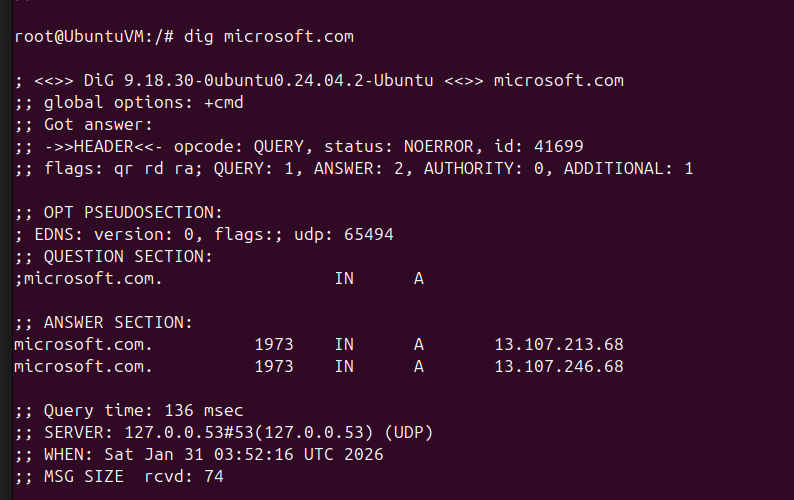
Breaking Down the Output
QUESTION SECTION:
- We're asking for the A record (IPv4 address) of
microsoft.com
ANSWER SECTION:
microsoft.comresolves to IP address13.107.213.68TTL is 300 seconds (5 minutes)—the browser will cache this for 5 minutes
AUTHORITY SECTION:
Shows the authoritative name servers for microsoft.com
This confirms that the answer came from an authoritative source
The Behind-the-Scenes Recursive Resolution
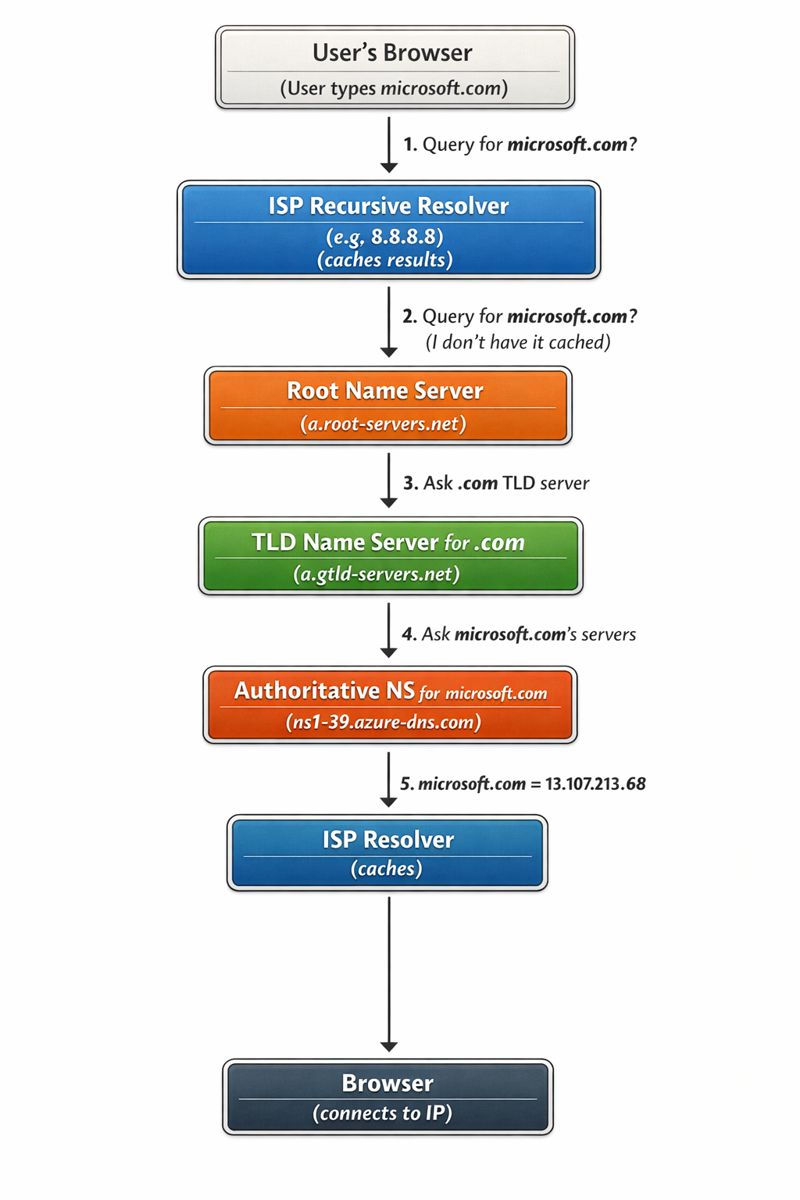
Here's the step-by-step process that actually happens:
Browser queries the local resolver (often our ISP's resolver)
- "What's the IP for microsoft.com?"
Local resolver queries a root server
- "I don't know microsoft.com. Do we have a server for .com domains?"
Root server responds
- "Ask the .com TLD servers" (returns list of TLD servers)
Local resolver queries a TLD server
- "Do we have a server for microsoft.com?"
TLD server responds
- "Ask Microsoft’s authoritative servers" (returns list of ns1-39.azure-dns.com, etc.)
Local resolver queries microsoft.com's authoritative server
- "What's the IP address for microsoft.com?"
Authoritative server responds
- "It's 13.107.213.68"
Local resolver caches the answer and returns it to the browser
- Browser now has the IP and can establish a connection
Visual Flow Diagram
Part 5: Recursive Resolvers - The Silent Helpers
We've focused on authoritative servers, but there's an unsung hero: the recursive resolver.
When we use dig, by default we're querying a recursive resolver (usually our ISP's or a public one like google’s 8.8.8.8). The recursive resolver does all the heavy lifting:
It doesn't know the answer to "What's microsoft.com?"
So it recursively queries the root server
The root doesn't know, so it asks the TLD server
The TLD doesn't know, so it asks the authoritative server
The authoritative server knows and returns the answer
The resolver passes this back to us and caches it
Key insight: Our browser doesn't contact all these servers directly. The resolver does the work on our behalf. This is why it's called "recursive"—it recursively follows the chain until it gets an answer.
If we want to query a specific server (not a recursive resolver), we use dig @server.name:
# Query a root server directly
dig @a.root-servers.net microsoft.com

# Query a TLD server directly
dig @a.gtld-servers.net microsoft.com
Direct queries often return different results because authoritative and root servers may not have the full answer—they know enough to point us to the next server.
Part 6: Connecting to Real-World Browser Requests
Now let's connect this technical knowledge back to what happens when we visit a website.
The Full Journey from Browser to Website
We type
microsoft.comin the browserBrowser needs the IP address:
Checks its cache (is microsoft.com already resolved?)
If not, queries the operating system
OS checks its DNS cache:
If found, returns it
If not, queries the configured resolver
Resolver performs the recursive resolution (as we described above)
- Returns: 13.107.216.68
Browser now has the IP address
- Establishes a TCP connection to 13.107.213.68 (or :443 for HTTPS)
Browser sends HTTP request
- "GET / HTTP/1.1\nHost: microsoft.com\n..."
Server at 13.107.213.68 responds
- Sends back the HTML, CSS, JavaScript, etc.
Browser renders the page
The DNS lookup happens in milliseconds, making it invisible to users. But without it, the entire web would be inaccessible.
Practical Implications for Engineers
Why we care about DNS:
Domain migrations - When we move our site to a new server, we update DNS records. DNS propagation delays can cause downtime.
Load balancing - We can point one domain to multiple IPs. DNS distributes traffic by returning different IPs in rotation.
Failover - If one server goes down, we update DNS to point to a backup.
Regional routing - We can return different IPs based on the user's location, routing them to the nearest server.
Email routing - MX records tell mail servers where to deliver emails.
Security - SPF and DKIM records help prevent email spoofing.
Part 7: Useful dig Commands for Engineers
Now that we understand the hierarchy, let's look at practical commands we'll use regularly:
Basic A Record Lookup
dig microsoft.com
Returns the IPv4 address of google.com.
IPv6 Address Lookup (AAAA Record)
dig microsoft.com AAAA
Returns the IPv6 address if available.
Mail Server Lookup (MX Record)
dig microsoft.com MX
Shows which servers handle email for google.com.
Text Record Lookup (TXT Record)
dig microsoft.com TXT
TXT records are used for SPF (spam prevention), DKIM (email authentication), and DMARC (domain policy).
Name Server Lookup (NS Record)
dig microsoft.com NS
Shows the authoritative name servers.
CNAME Record Lookup
dig www.example.com
If www.example.com is a CNAME (Canonical Name), it returns what it's aliased to.
Query Specific Name Server
dig @ns1-39.azure.dns.com google.com
Query a specific server instead of the default resolver.
Short Output Format
dig +short microsoft.com
Returns just the IP, no extra information.
dig +trace microsoft.com
Shows the entire resolution path from root to authoritative server
Part 8: Key Concepts Summary
The DNS Hierarchy
ROOT SERVERS
    ↓ (delegates to)
TLD SERVERS (.com, .org, .net, etc.)
    ↓ (delegates to)
AUTHORITATIVE SERVERS (google.com, example.com, etc.)
Types of DNS Servers
| Server Type | Role | Example |
| Root | Points to TLD servers | a.root-servers.net |
| TLD | Points to authoritative servers | a.gtld-servers.net (.com) |
| Authoritative | Has actual IP addresses | ns1.google.com |
| Recursive Resolver | Does the work on behalf of clients | 8.8.8.8 (Google), 1.1.1.1 (Cloudflare) |
NS Records Explained
NS records are like address books at each level:
Root NS records → "These are the .com servers"
TLD NS records → "These are the microsoft.com servers"
Each NS record is a delegation: "I don't handle this. Ask them."
TTL (Time To Live)
The TTL determines how long a DNS result can be cached:
Low TTL (300s) = Changes take effect quickly but more queries to authoritative servers
High TTL (86400s) = Fewer queries but slower propagation of changes
dig Workflow
When we run dig microsoft.com:
Our computer queries its configured resolver
If the resolver has the answer cached, it returns immediately
If not, the resolver performs the recursive resolution:
Queries root → Gets TLD server address
Queries TLD → Gets authoritative server address
Queries authoritative → Gets the IP address
Resolver caches the answer for TTL seconds
Resolver returns answer to us
Conclusion
DNS is one of the most elegant systems on the internet. Rather than centralized, it's distributed across thousands of servers. Rather than complex queries, it's based on simple delegation: "I don't know, ask them."
The dig command is our window into this system. By understanding:
What DNS is (internet's address book)
How it's hierarchical (root → TLD → authoritative)
What NS records do (delegate to the next level)
How recursive resolvers work (do the legwork for us)
How to use dig (inspect each layer)
We gain insight into one of the internet's fundamental technologies. The next time we visit a website, we can appreciate the thousands of DNS queries happening invisibly to make it work.


