Git Me Out of Here: The Developer's Essential Git Handbook
Build Confidence with Git Commands, Branching, Collaboration

What is Git?
Git is a distributed version control system that tracks changes in your code over time. Think of it as a time machine for your projects – you can see what changed, when it changed, and why it changed.
Created by Linus Torvalds in 2005 for Linux kernel development, Git has become the industry standard for version control.
Key Features:
Distributed: Every developer has the complete project history
Fast: Most operations are local and instant
Secure: Uses SHA-1 hashing for data integrity
Flexible: Supports various workflows and team sizes
Why Use Git?
1. Version Control
Track all changes to your code over time
Compare different versions of files
Revert to previous states when needed
Never lose your work
2. Collaboration
Multiple developers work simultaneously
Automatic change merging
Conflict resolution tools
No more "final_v2_REAL_final.js" files
3. Backup & Recovery
Distributed backups across all team members
Complete project history everywhere
Remote repositories as additional backup
4. Branching & Experimentation
Create isolated development environments
Test features without affecting main code
Easy merging when ready
5. Industry Standard
Used by Google, Facebook, Microsoft, and most tech companies
Free and open-source
Extensive tooling and platform support
Essential skill for modern developers
Git Core Concepts
Repository (Repo)
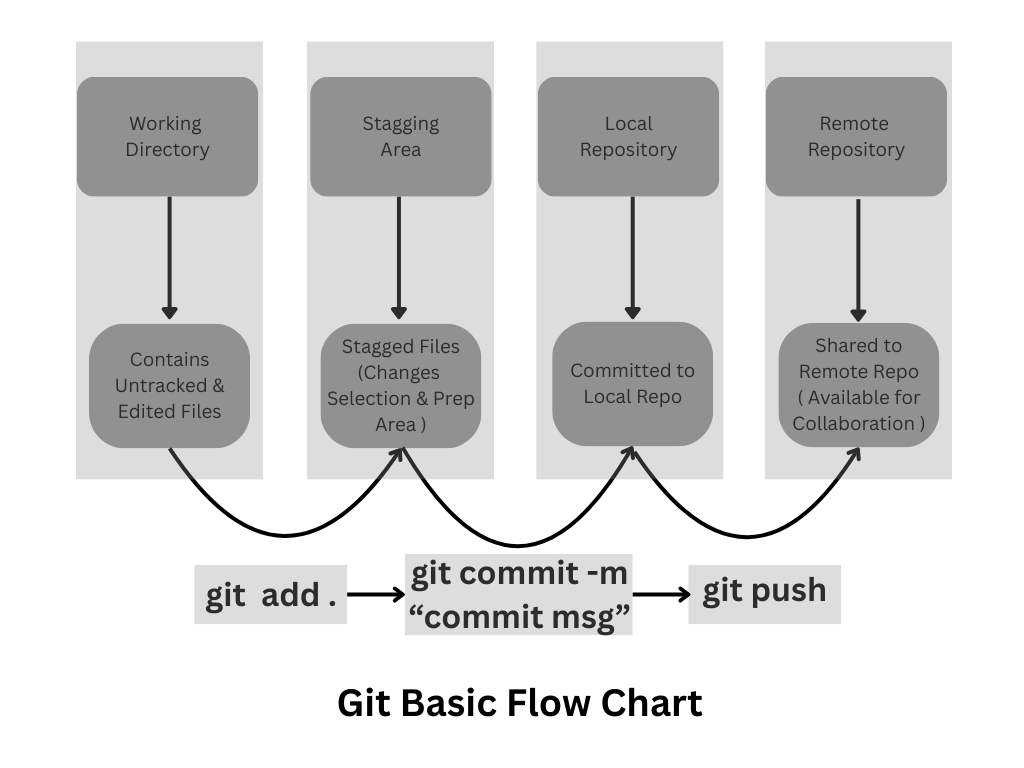
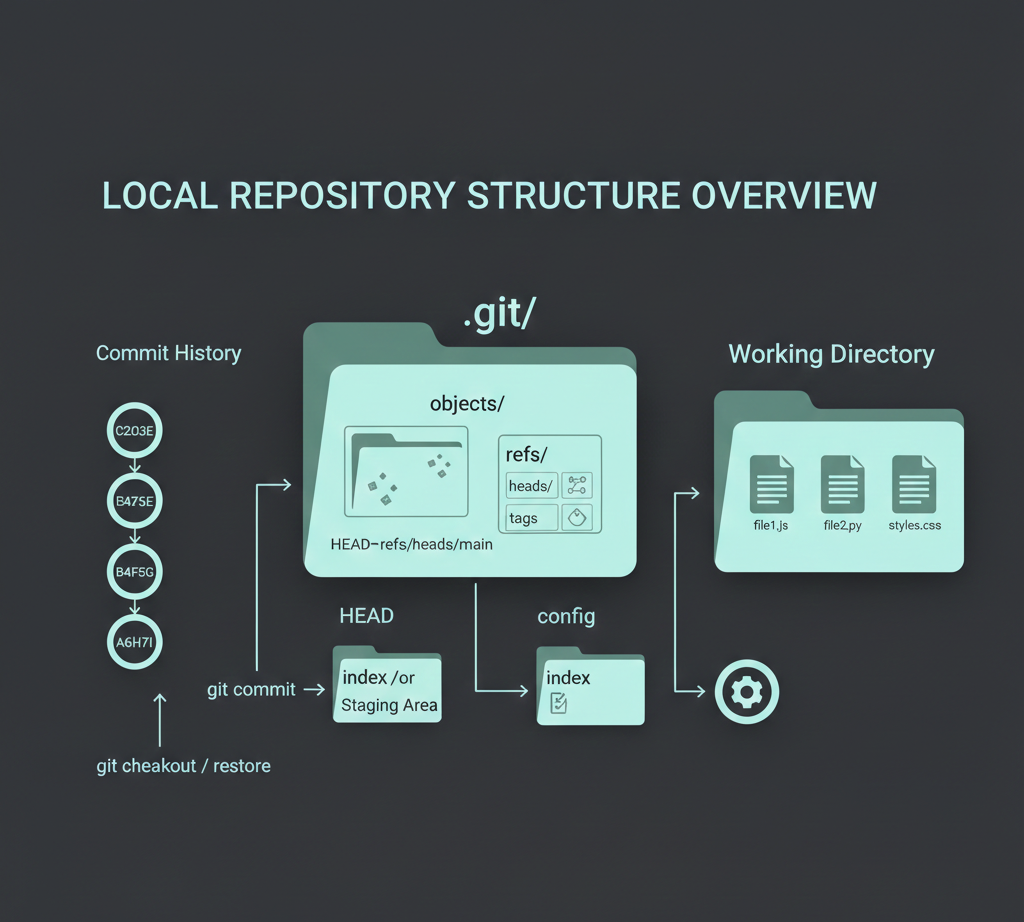
A repository is a remote location which contains your project files and the complete history of changes.
Working Directory
The current state of your files that you can see and edit in local.
Staging Area (Index)
A preparation area where you collect changes before committing them. This allows you to choose exactly which changes to include in your next commit.
Commit
A snapshot of your project at a specific point in time. Each commit has:
Unique ID (hash)
Author information
Timestamp
Commit message
Branch
An independent line of development. The default branch is usually main or master. You can create branches to work on features without affecting the main code.
HEAD
A pointer to your current branch and the latest commit you're working from.
Remote
A version of your repository hosted on a server (GitHub, GitLab, etc.) for collaboration and backup.
Git Flow Diagram
Local Repository Diagram
Essential Git Commands
Configuration Commands
- First, install Git according to your operating system and set the required path.
Set up your identity
git config --global user.name "Your Name"
git config --global user.email "your.email@example.com"
Check configuration
git config --list
git config user.name
Repository Commands
Initialize a new repository
git init
Clone an existing repository
git clone https://github.com/username/repository.git
Basic Workflow Commands
Check repository status
git status
Shows which files are modified, staged, or untracked
Add files to staging area
git add filename.txt          # Add specific file
git add .                     # Add all files in current directory
git add *.js                  # Add all JavaScript files
git add src/                  # Add entire src directory
Commit changes
git commit -m "Add login functionality"
git commit -am "Update and commit all tracked files"  # Add and commit in one step
View commit history
git log                       # Full log
git log --oneline            # Compact view
git log --graph              # Visual branch representation
git log -5                   # Last 5 commits
Branch Commands
List branches
git branch                   # Local branches
git branch -r                # Remote branches
git branch -a                # All branches
Create and switch branches
git branch feature-login     # Create branch
git checkout feature-login   # Switch to branch
git checkout -b feature-login # Create and switch in one command
git switch feature-login     # Modern way to switch (Git 2.23+)
Merge branches
git checkout main
git merge feature-login
Delete branches
git branch -d feature-login  # Delete merged branch
git branch -D feature-login  # Force delete
Remote Commands
Add remote repository
git remote add origin https://github.com/username/repository.git
View remotes
git remote -v
Push changes
git push origin main         # Push to specific branch
git push -u origin main      # Push and set upstream
git push                     # Push to upstream (after setting)
Pull changes
git pull origin main         # Fetch and merge
git fetch origin             # Just fetch (no merge)
Inspection Commands
View differences
git diff                     # Working directory vs staging
git diff --staged            # Staging vs last commit
git diff HEAD~1              # Current vs one commit back
Show commit details
git show                     # Latest commit
git show commit-hash         # Specific commit
Basic Developer Workflow
Here's a practical step-by-step workflow for using Git in your projects:
1. Project Setup
# Create and initialize repository
mkdir my-project
cd my-project
git init

# Create initial files
echo "console.log('Hello World');" > app.js

# Check status
git status
2. First Commit
# Add files to staging area
git add app.js
# Or add all files:
git add .

# Create commit
git commit -m "Initial commit: Add project foundation"

# View history
git log --oneline
3. Making Changes
# Modify files ( as per your IDE )
echo "console.log('Updated!');" >> app.js

# Check what changed
git status
git diff

# Stage and commit
git add app.js
git commit -m "Update app.js with new functionality"
4. Working with Branches
# Create and switch to feature branch
git checkout -b feature/new-feature

# Make changes and commit ( as per your IDE )
echo "// New feature code" > feature.js
git add feature.js
git commit -m "Add new feature"

# Switch back to main and merge
git checkout main
git merge feature/new-feature

# Clean up
git branch -d feature/new-feature
5. Remote Repository
# Add remote (after creating on GitHub/GitLab)
git remote add origin https://github.com/username/repo.git

# Push to remote
git push -u origin main

# Future pushes
git push
General Guidelines
Commit Frequently
Small, focused commits are better
Commit after completing logical units of work
Don't wait until end of day
Use .gitignore
 # Dependencies
 node_modules/
 vendor/

 # Build outputs
 dist/
 build/

 # Environment files
 .env
 .env.local

 # IDE files
 .vscode/
 .idea/

 # OS files
 .DS_Store
 Thumbs.db
Pull Before Push
Always
git pullbeforegit pushPrevents merge conflicts
Keeps history clean
Backup Regularly
Push to remote repositories daily
Use multiple remotes if needed
Don't rely on local copies only
Real-World Git Scenarios
Let me share some scenarios you'll definitely encounter (and how to handle them like a pro):
Scenario 1: "Help! I Deleted Something Important"
Picture this: It's Friday afternoon, you're rushing to finish a feature, and you accidentally delete an entire function. In the pre-Git days, this would be panic time. With Git? It's just a minor inconvenience.
# See what you've changed
git diff

# If you haven't committed yet, just restore the file
git checkout -- filename.js

# If you committed the deletion, find the commit before the deletion
git log --oneline
git checkout [commit-hash] -- filename.js
Scenario 2: "My Teammate and I Changed the Same File"
This happens all the time in team development. You're both working on different features, but you both modified the same file. When you try to merge, Git says there's a conflict. Don't worry – Git is actually being helpful here!
# When you pull and get a conflict, Git marks the conflicting areas
git pull origin main
# Git will show you exactly where the conflicts are

# Open the file and you'll see something like:
# <<<<<<< HEAD
# Your changes
# =======
# Their changes
# >>>>>>> branch-name

# Edit the file to resolve conflicts, then:
git add conflicted-file.js
git commit -m "Resolve merge conflict in user authentication"
Scenario 3: "I Want to Try Something Risky"
You have a wild idea for refactoring your code, but you're not sure if it'll work. This is where Git's branching really shines:
# Create a new branch for your experiment
git checkout -b experiment/crazy-refactor

# Go wild! Break things, try new approaches
# ... make changes ...

# If it works:
git checkout main
git merge experiment/crazy-refactor

# If it doesn't work:
git checkout main
git branch -D experiment/crazy-refactor  # Delete the experiment
Scenario 4: "I Need to Switch Tasks Urgently"
You're in the middle of implementing a feature when your boss asks you to fix a critical bug immediately. Your current work isn't ready to commit, but you need to switch to a different branch. Enter git stash:
# Save your current work temporarily
git stash push -m "WIP: user profile feature"

# Switch to main and create a hotfix branch
git checkout main
git checkout -b hotfix/critical-bug

# Fix the bug, commit, merge, etc.

# When ready to return to your feature:
git checkout feature/user-profile
git stash pop  # Restore your work-in-progress
Conclusion
Git is an essential tool for modern software development. By mastering these basic commands and concepts, you'll be well-equipped to:
Track and manage code changes effectively
Collaborate with other developers
Maintain clean project history
Recover from mistakes quickly
Work with professional development workflows
Resources
Learning:
Practice:
Create personal projects
Contribute to open source
Tools:
GitHub - Code hosting
GitLab - DevOps platform
Sourcetree - GUI client
Start practicing with real projects today. Every expert was once a beginner, and Git mastery comes through consistent use and experimentation.
For advanced topics and troubleshooting, visit the official Git documentation.


